
JoiPlay Controller Setup Guide: How to Play RPG Maker and Visual Novel Games with a Gamepad
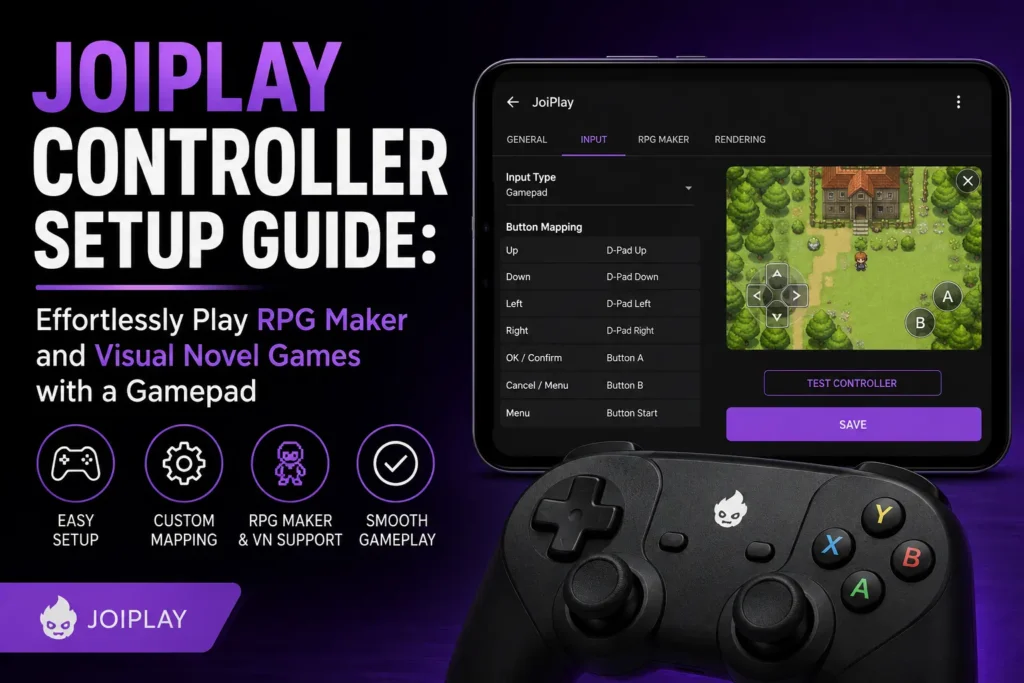
Playing story-driven games on a phone screen with touch controls can feel clunky, especially if you’re used to console-style gaming. That’s where JoiPlay comes in. This lightweight Android emulator lets you run RPG Maker games, visual novels, and other engine-based titles directly on your phone or tablet, and with the right setup, you can control everything using a physical gamepad instead of tapping the screen. This guide walks you through everything you need to know about JoiPlay controller support, from installing the app to mapping buttons for a smooth, console-like experience.
What Is JoiPlay?
JoiPlay is a free Android emulator designed to run games built with popular engines like RPG Maker, Ren’Py, and TyranoBuilder, none of which are natively compatible with Android. Instead of building support for every engine into one massive app, JoiPlay uses a modular plugin system. You install the base JoiPlay apk, then add specific plugins depending on which type of game you want to play.
This approach keeps the core app small and flexible, and it’s a big reason why JoiPlay android users have embraced it as the go-to solution for playing PC-exclusive indie games on mobile. Whether you’re revisiting a classic RPG Maker title or trying a new visual novel, JoiPlay gives you a way to do it without needing a PC or a cloud gaming subscription.
Downloading JoiPlay APK
Before you can set up a controller, you need the app itself. Since JoiPlay isn’t distributed through the Google Play Store, most users get it directly from the developer’s official website or trusted mirror sites. When searching for a JoiPlay apk download, always verify you’re getting the file from a legitimate source to avoid bundled malware or outdated builds. For Spanish-speaking users searching JoiPlay descargar, the process is identical, download the base APK, then grab any required plugins separately. The installation steps don’t change based on language; only the search terms differ.
Once downloaded:
- Enable “Install from Unknown Sources” in your Android settings (this is required since the app isn’t from the Play Store).
- Open the downloaded APK file and follow the on-screen prompts to install.
- Launch JoiPlay once to confirm it opens correctly before moving on to plugins.
Understanding JoiPlay Plugins
JoiPlay’s plugin system is central to how the app works, and it’s also relevant to controller support, since some plugins handle input differently than others.
JoiPlay Crosswalk Plugin
The JoiPlay Crosswalk plugin is essential for running many HTML5-based games, particularly those built with certain versions of RPG Maker MV and MZ that rely on the Crosswalk (XWalk) runtime. Without this plugin, many modern RPG Maker titles simply won’t launch. If you notice a game freezing on a black screen or refusing to start, missing the Crosswalk plugin is often the culprit.
JoiPlay RPG Maker Plugin
For older RPG Maker titles (VX, VX Ace, and similar), you’ll need the dedicated JoiPlay RPG Maker plugin. This plugin translates the game’s original scripting and rendering calls into something Android can process. Each RPG Maker generation may require a slightly different plugin version, so it’s worth checking which engine version your target game uses before downloading.
Other Plugins
Beyond RPG Maker and Crosswalk, JoiPlay also supports plugins for Ren’Py (visual novels) and other engines. Installing plugins is simple: download the plugin APK, install it like a normal app, and JoiPlay will automatically detect it the next time you open the launcher. Follow this JoiPlay fix guide to tackle any difficulties in installing the app.
Why Use a Controller with JoiPlay?
Touchscreen controls work fine for point-and-click visual novels, but RPG Maker games often involve menus, battle commands, and directional movement that feel far more natural with physical buttons and a D-pad. A controller reduces accidental taps, speeds up menu navigation, and makes combat sequences much more responsive. If you’re someone who grew up on console RPGs, pairing a gamepad with JoiPlay closes the gap between mobile emulation and a “real” gaming experience.
Step-by-Step JoiPlay Controller Setup
Here’s how to get your gamepad working with JoiPlay from start to finish.
Step 1: Connect Your JoiPlay Controller to Your Android Device
Most modern controllers connect to Android in one of two ways:
- Bluetooth: Put your controller into pairing mode (usually by holding a sync button), then go to your phone’s Bluetooth settings and select it from the list of available devices.
- USB (wired): Use a USB-OTG adapter to plug the controller directly into your phone’s charging port.
Popular controllers like Xbox and PlayStation gamepads, as well as generic Bluetooth controllers, are generally recognized by Android without needing extra drivers.
Step 2: Verify Android Recognizes the JoiPlay Controller
Before opening JoiPlay, it’s a good idea to confirm the controller is properly connected. You can do this by opening any other app that supports controller input, or checking your device’s Bluetooth settings to make sure the connection status shows as “Connected” rather than “Paired” only.
Step 3: Open JoiPlay and Access Settings
Launch the JoiPlay app and navigate to the settings menu. Depending on your JoiPlay version, this may be represented by a gear icon or listed under a menu labeled “Preferences” or “Input.”
Step 4: Enable Controller/Gamepad Support
Inside the settings, look for an option related to controller input, gamepad support, or external input devices. Toggle this on. In most builds of JoiPlay, once a controller is detected, the app will automatically recognize button presses without requiring manual driver installation.
Step 5: Map Your Buttons
This is the most important part of setting up a JoiPlay plugin-based game with a controller. Go into the button mapping section and assign:
- D-pad or left stick to directional movement
- Face buttons (A/B/X/Y or equivalent) to confirm, cancel, and menu actions
- Shoulder buttons/triggers to secondary functions like fast-forwarding text in visual novels or opening the in-game menu
Many RPG Maker games use a standard layout where one button confirms selections and another cancels or opens the menu, mapping these consistently with how you’d expect on a console controller makes the transition seamless.
Step 6: Test In-Game
Load a game through JoiPlay and test your mappings during actual gameplay. Movement, menu navigation, and battle commands are the best places to check responsiveness. If something feels off, return to the mapping menu and adjust as needed. Not every plugin handles input identically, so a mapping that works perfectly in an RPG Maker VX Ace title might need slight tweaks for a Crosswalk-based MV game.
JoiPlay Controller Improvements
Version updates to JoiPlay have historically brought meaningful improvements to input handling, plugin compatibility, and stability. JoiPlay 1.22 and its incremental release, JoiPlay 1.22.000, introduced refinements to how the app detects external devices and manages plugin communication, which can directly affect how well your controller performs.
If you’re running an older version of the app and experiencing input lag, unrecognized button presses, or controllers that disconnect randomly during gameplay, updating to the latest 1.22.x build is one of the first troubleshooting steps worth trying. Developers frequently patch input-related bugs in these point releases, so keeping JoiPlay updated is a simple way to maintain the best controller experience.
Troubleshooting Common Controller Issues
Even with everything set up correctly, you might run into a few snags. Here are common problems and fixes:
Controller not detected at all: Double-check the Bluetooth pairing status, or try a different USB-OTG cable if using a wired connection. Some cheaper OTG adapters don’t reliably pass through controller signals.
Buttons mapped but not responding in-game: This usually points to a plugin compatibility issue rather than a controller problem. Confirm you have the correct plugin installed for the specific engine your game uses, for example, a Crosswalk-based game won’t respond properly if only the standard RPG Maker plugin is installed.
Input works in menus but not during battles (or vice versa): Some games handle menu navigation and battle input through separate code paths. If you notice inconsistent behavior, check whether the game itself has known compatibility issues with JoiPlay, since this is sometimes a limitation of the original game engine rather than the app.
Controller disconnects mid-session: Battery levels, Bluetooth interference, or Android power-saving settings can all cause random disconnects. Disabling battery optimization for JoiPlay specifically often resolves this.
Tips for the Best JoiPlay Controller Experience
- Keep both the JoiPlay base app and all installed plugins updated to their latest versions for maximum compatibility.
- Use a controller with standard Xbox-style layout for the most predictable button mapping experience, since most guides and community mapping presets are built around this layout.
- If you play multiple genres (RPG Maker titles and visual novels, for example), save separate button mapping profiles if JoiPlay’s settings allow it, since ideal control schemes differ between genres.
- Join JoiPlay community forums or Discord servers where other users share working configurations for specific games, this can save significant trial and error.
Final Thoughts
Setting up a controller with JoiPlay transforms the way you experience RPG Maker games and visual novels on Android. Once you’ve installed the base app, added the right plugins like the Crosswalk or RPG Maker plugin, and mapped your buttons correctly, you’ll have a smooth, console-like way to enjoy games that were never designed for mobile in the first place. Keep the app updated to the latest 1.22.x release for the best input performance, and don’t be afraid to experiment with your button layout until it feels natural. With the setup covered in this guide, you’re ready to plug in, pair up, and start playing.