How to Add a Runtime Package on JoiPlay Mobile 2026(Easy Step-by-Step Guide)
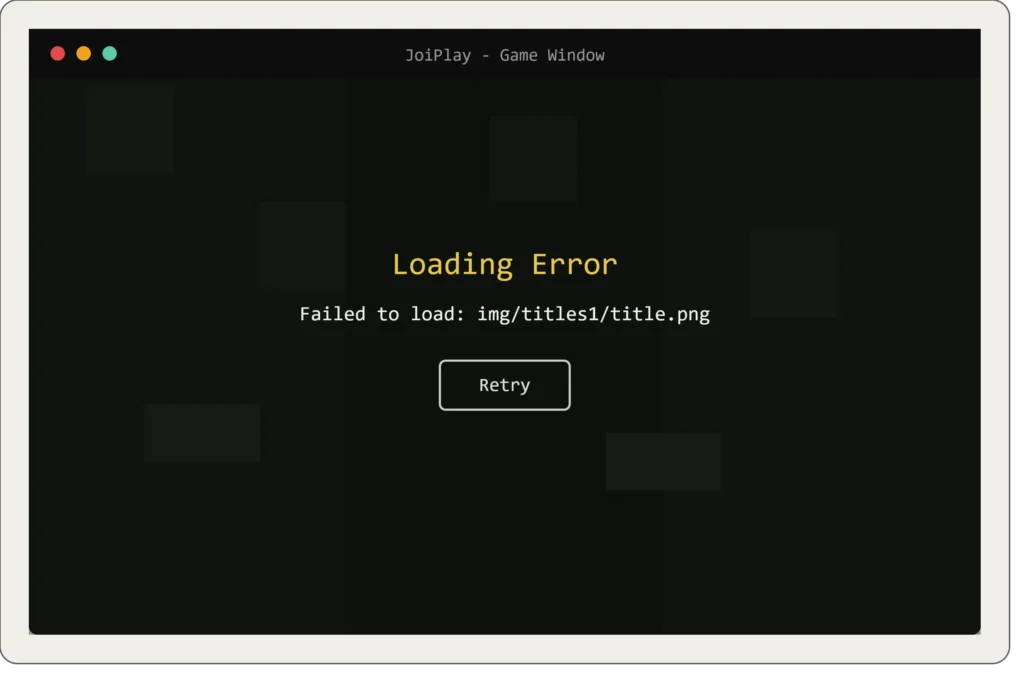
You have set up JoiPlay, added your favorite RPG game and then the game throws an error or just refuses to launch. It feels super frustrating after spending too much time and still not getting the end results. The fix is usually really simple. Most of the time, all you need is something called a Runtime Package (RTP) and once you install it, your game will run just fine. In this guide, we’re going to walk you through everything from scratch. What runtime packages are, why you need them, and how to add one to JoiPlay step by step.
Want to Use Cheats on JoiPlay? Here’s Everything You Need to Know
What Exactly Is a Runtime Package?
When game developers make a game using RPG Maker (or similar tools), they sometimes leave out certain files from the game’s download. Why? Because those files are shared resources like common sound effects, fonts, character sprites, and graphics that lots of games use.
Instead of every single game including the same files over and over again, developers expect you to already have those shared files installed separately. That’ collection of shared files are actually runtime package. Without the right RTP installed, JoiPlay simply can’t find what it needs to run the game. With it installed, everything clicks into place and the game works perfectly!
Why Should You Bother Installing a Runtime Package?
Here’s why RTPs are totally worth the five minutes it takes to install them:
- 🎮 More Games Work: A huge number of RPG Maker games need RTPs to run. Installing one unlocks a ton of titles you couldn’t play before
- 💾 Saves Storage Space: One RTP package can be shared across many games, so you’re not downloading the same files over and over
- ⚡ Better Performance: Games load faster and run smoother because they can find all their required files instantly
- 🛠️ Fewer Errors: Say goodbye to annoying “file not found” crashes and missing asset errors
What Do You Need Before Getting Started?
Before we jump into the steps, let’s make sure you’ve got everything ready:
Your Android Phone Should Have:
- Android 5.0 or newer
- At least 500 MB of free storage (some RTPs are bigger, so more is better)
- 2 GB of RAM or more for smooth performance
You’ll Also Need:
- The JoiPlay app installed
- The correct Runtime Package file for your game.
Which RTP Do You Need?
Different games need different RTPs depending on which version of RPG Maker was used to create them:
| Game Type | Runtime Package Needed |
|---|---|
| RPG Maker XP game | RPG Maker XP RTP |
| RPG Maker VX game | RPG Maker VX RTP |
| RPG Maker VX Ace game | RPG Maker VX Ace RTP |
| RPG Maker MV/MZ game | Usually no RTP needed |
How to Add a Runtime Package on JoiPlay: Step by Step
Follow these steps and you’ll be up and running in no time. Also you can get the detail on how to download and install JoiPlay apk and its plugin easily and in no time.
Step 1: Download the Right Runtime Package
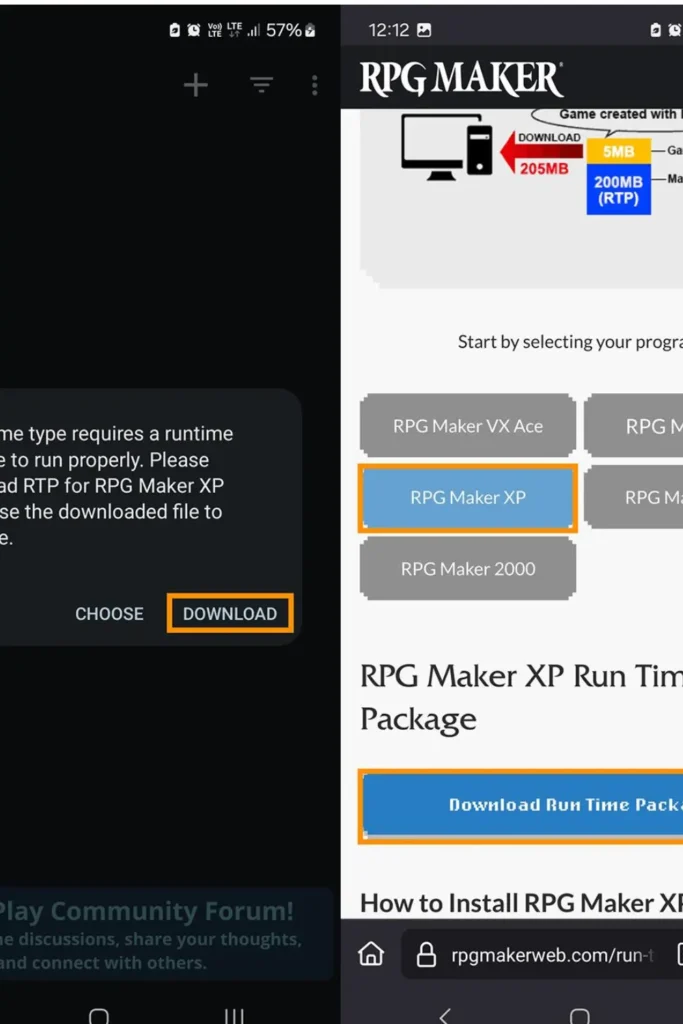
First things first, you need to grab the RTP file for your game.
- Go to the official RPG Maker website or the JoiPlay resources page
- Find the Runtime Package that matches your game (XP, VX, or VX Ace)
- Tap the download link and save the file to your phone’s storage
Step 2: Make Sure JoiPlay Is Installed
If you haven’t already, install the JoiPlay app from the Google Play Store.
Once it’s installed:
- Open JoiPlay
- Give it the storage permission
- Let the app finish setting itself up
Step 3: Add the Runtime Package to JoiPlay
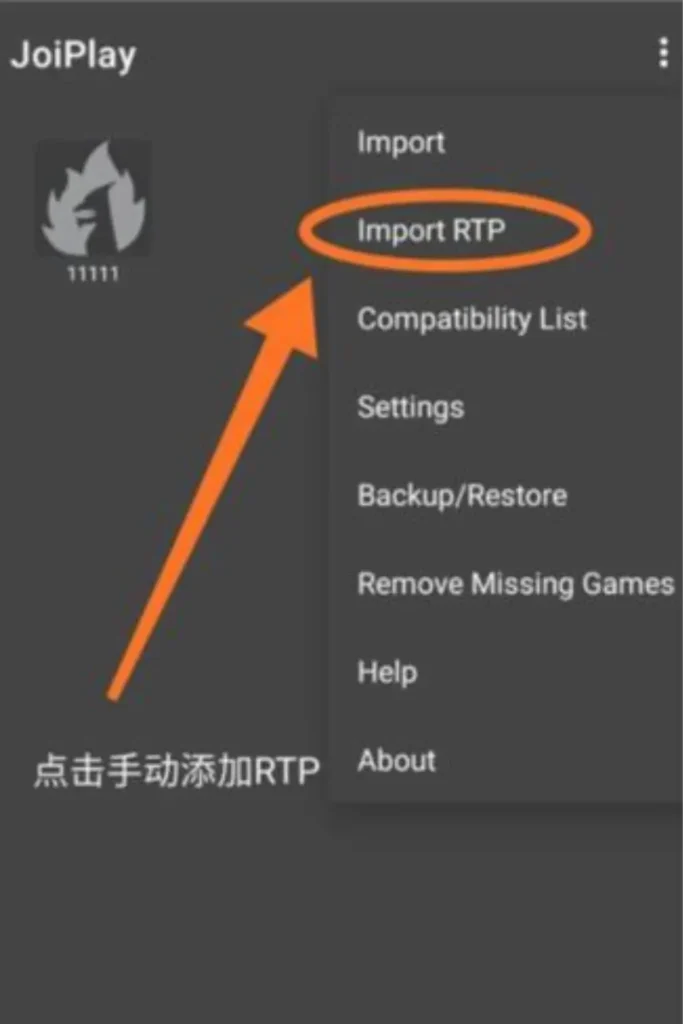
Here’s where the magic happens. This is the part where you actually install the RTP inside JoiPlay. If you don’t know how to install JoiPlay and plugins, read our guide about it as well.
- Open the JoiPlay app
- Tap the three-dot menu or go to Settings (usually in the top corner)
- Look for the “Runtime Package” section
- Tap “Add Runtime Package”
- A file browser will open, navigate to where you saved the RTP file
- Tap on the RTP file to select it
- Follow any on-screen prompts to finish the installation
- Once it’s done, close and reopen JoiPlay, this helps the app properly recognize the new package.
Step 4: Launch Your Game!
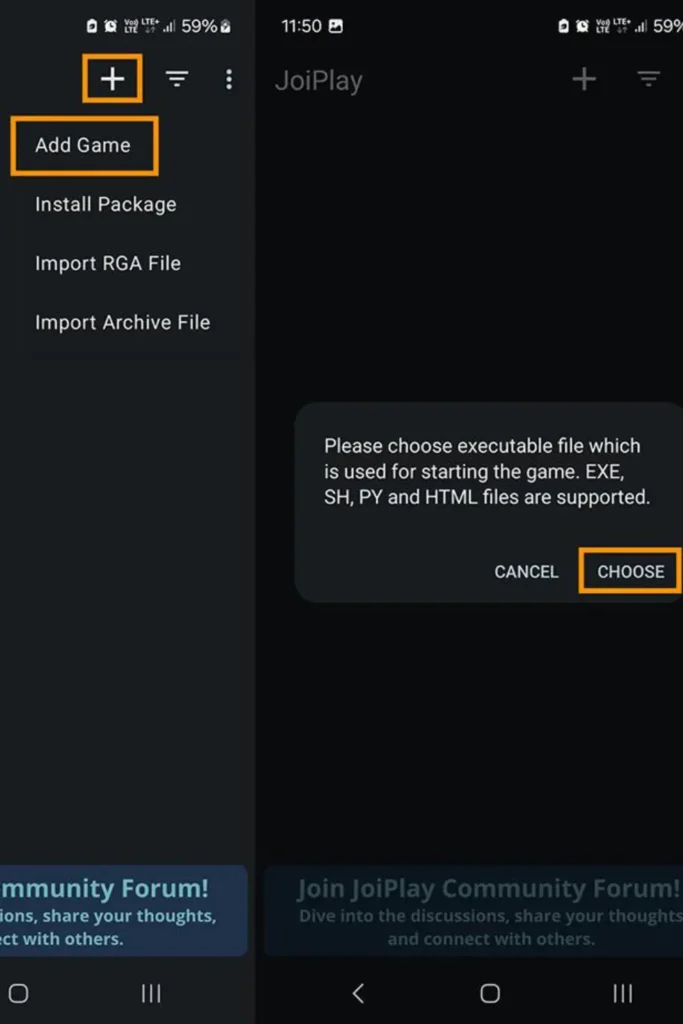
- In JoiPlay, tap the “+” button to add your game
- Browse to your game folder and select the main game file
- Tap Play
You have set up JoiPlay, added your favorite RPG game and then the game throws an error or just refuses to launch. It feels super frustrating after spending too much time and still not getting the end results. The fix is usually really simple. Most of the time, all you need is something called a Runtime Package (RTP) and once you install it, your game will run just fine. In this guide, we’re going to walk you through everything from scratch. What runtime packages are, why you need them, and how to add one to JoiPlay step by step.
What Exactly Is a Runtime Package?
When game developers make a game using RPG Maker (or similar tools), they sometimes leave out certain files from the game’s download. Why? Because those files are shared resources like common sound effects, fonts, character sprites, and graphics that lots of games use.
Instead of every single game including the same files over and over again, developers expect you to already have those shared files installed separately. That’ collection of shared files are actually runtime package. Without the right RTP installed, JoiPlay simply can’t find what it needs to run the game. With it installed, everything clicks into place and the game works perfectly.
Why Should You Bother Installing a Runtime Package?
Here’s why RTPs are totally worth the five minutes it takes to install them:
- 🎮 More Games Work: A huge number of RPG Maker games need RTPs to run. Installing one unlocks a ton of titles you couldn’t play before
- 💾 Saves Storage Space: One RTP package can be shared across many games, so you’re not downloading the same files over and over
- ⚡ Better Performance: Games load faster and run smoother because they can find all their required files instantly
- 🛠️ Fewer Errors: Say goodbye to annoying “file not found” crashes and missing asset errors. If you are really finding bugs and errors in your games, check these error and fixes guides.
What Do You Need Before Getting Started?
Before we jump into the steps, let’s make sure you’ve got everything ready:
Your Android Phone Should Have:
- Android 5.0 or newer
- At least 500 MB of free storage (some RTPs are bigger, so more is better)
- 2 GB of RAM or more for smooth performance
You’ll Also Need:
- The JoiPlay app installed
- The correct Runtime Package file for your game.
Which RTP Do You Need?
Different games need different RTPs depending on which version of RPG Maker was used to create them:
| Game Type | Runtime Package Needed |
|---|---|
| RPG Maker XP game | RPG Maker XP RTP |
| RPG Maker VX game | RPG Maker VX RTP |
| RPG Maker VX Ace game | RPG Maker VX Ace RTP |
| RPG Maker MV/MZ game | Usually no RTP needed |
How to Add a Runtime Package on JoiPlay: Step by Step
Follow these steps and you’ll be up and running in no time. Also you can get the detail on how to download and install JoiPlay apk and its plugin easily and in no time.
Step 1: Download the Right Runtime Package

First things first, you need to grab the RTP file for your game.
- Go to the official RPG Maker website or the JoiPlay resources page
- Find the Runtime Package that matches your game (XP, VX, or VX Ace)
- Tap the download link and save the file to your phone’s storage
Step 2: Make Sure JoiPlay Is Installed
If you haven’t already, install the JoiPlay app from the Google Play Store.
Once it’s installed:
- Open JoiPlay
- Give it the storage permission
- Let the app finish setting itself up
Step 3: Add the Runtime Package to JoiPlay

Here’s where the magic happens. This is the part where you actually install the RTP inside JoiPlay. If you don’t know how to install JoiPlay and plugins, read our guide about it as well.
- Open the JoiPlay app
- Tap the three-dot menu or go to Settings (usually in the top corner)
- Look for the “Runtime Package” section
- Tap “Add Runtime Package”
- A file browser will open, navigate to where you saved the RTP file
- Tap on the RTP file to select it
- Follow any on-screen prompts to finish the installation
- Once it’s done, close and reopen JoiPlay, this helps the app properly recognize the new package.
Step 4: Launch Your Game!

- In JoiPlay, tap the “+” button to add your game
- Browse to your game folder and select the main game file
- Tap Play
If the game loads correctly, you’re ready to play. For RPG Maker titles especially, we recommend setting up a controller for smoother menu and battle navigation.
Common Problems and Easy Fixes

The problem is not fixed and you are still running into issues. Here are the most common problems and exactly how to fix them:
❌ “Runtime Package Not Detected” Error
This usually means JoiPlay can’t find the RTP file.
✅ Fix: Go back to Settings → Runtime Package and try adding the file again. Make sure you’re selecting the actual RTP file and not just its folder.
❌ Game Still Crashes After Installing RTP
✅ Fix: You might have the wrong RTP version. Double-check which RPG Maker version your game uses and make sure the RTP matches. For example, an XP game needs the XP RTP: a VX Ace RTP won’t work for it.
❌ RTP Installation Fails Midway
✅ Fix: Clear JoiPlay’s app cache. Go to your phone’s Settings → Apps → JoiPlay → Storage → Clear Cache, then try installing the RTP again.
❌ JoiPlay Says “Permission Denied”
✅ Fix: Go to Settings → Apps → JoiPlay → Permissions and make sure Storage permission is turned on. JoiPlay needs this to read files from your phone.
❌ Can’t Find the RTP File in JoiPlay’s Browser
✅ Fix: The file might be in an unexpected location. Use your phone’s file manager to find the RTP file first, then note its location (e.g., Internal Storage/Downloads/RPG_RT.zip). Then navigate to that same spot inside JoiPlay.
Best Practices that Keep Everything Running Smoothly
Here are a few good habits that will save you headaches down the road:
📁 Create a Dedicated RTP Folder Keep all your runtime packages in one easy-to-find folder on your phone. Something like Internal Storage/JoiPlay/RTPs works great.
🔄 Update RTPs When Needed If a game stops working after a JoiPlay update, check if there’s a newer version of the RTP available. Keeping them updated prevents a lot of random bugs.
🧪 Test After Installing After adding a new RTP, quickly launch the game to make sure everything’s working before you dive into a long play session.
🗑️ Remove RTPs You No Longer Need If you’re done with a game and won’t play it again, you can remove its RTP to free up storage. Just go to Settings → Runtime Package in JoiPlay and delete it from there.
If you ever find any bugs or black screen issues, and you can’t understand what is happening during the game, you can simply check out this guide about black screen issues fix.
Frequently Asked Questions (FAQ)
Conclusion
Adding a runtime package to JoiPlay might sound a bit technical at first, but as you can see it’s actually really straightforward. Just three simple steps: download the right RTP, open JoiPlay settings, and add the file. That’s it! Once you’ve got the right runtime package installed, a whole bunch of games that weren’t working before will suddenly come to life. It’s one of those small things that makes a huge difference in your JoiPlay experience.
You Might Also Like
- JoiPlay Plugins Explained: What They Do and How to Install Them (2026)
- JoiPlay RPG Maker Plugin
- JoiPlay Ruffle Plugin: Remember Those Old Flash Games? You Can Play Them Again On Your Phone!
Common Problems and Easy Fixes

The problem is not fixed and you are still running into issues. Here are the most common problems and exactly how to fix them:
❌ “Runtime Package Not Detected” Error
This usually means JoiPlay can’t find the RTP file.
✅ Fix: Go back to Settings → Runtime Package and try adding the file again. Make sure you’re selecting the actual RTP file and not just its folder.
❌ Game Still Crashes After Installing RTP
✅ Fix: You might have the wrong RTP version. Double-check which RPG Maker version your game uses and make sure the RTP matches. For example, an XP game needs the XP RTP: a VX Ace RTP won’t work for it.
❌ RTP Installation Fails Midway
✅ Fix: Clear JoiPlay’s app cache. Go to your phone’s Settings → Apps → JoiPlay → Storage → Clear Cache, then try installing the RTP again.
❌ JoiPlay Says “Permission Denied”
✅ Fix: Go to Settings → Apps → JoiPlay → Permissions and make sure Storage permission is turned on. JoiPlay needs this to read files from your phone.
❌ Can’t Find the RTP File in JoiPlay’s Browser
✅ Fix: The file might be in an unexpected location. Use your phone’s file manager to find the RTP file first, then note its location (e.g., Internal Storage/Downloads/RPG_RT.zip). Then navigate to that same spot inside JoiPlay.
Best Practices that Keep Everything Running Smoothly
Here are a few good habits that will save you headaches down the road:
📁 Create a Dedicated RTP Folder Keep all your runtime packages in one easy-to-find folder on your phone. Something like Internal Storage/JoiPlay/RTPs works great.
🔄 Update RTPs When Needed If a game stops working after a JoiPlay update, check if there’s a newer version of the RTP available. Keeping them updated prevents a lot of random bugs.
🧪 Test After Installing After adding a new RTP, quickly launch the game to make sure everything’s working before you dive into a long play session.
🗑️ Remove RTPs You No Longer Need If you’re done with a game and won’t play it again, you can remove its RTP to free up storage. Just go to Settings → Runtime Package in JoiPlay and delete it from there.
Frequently Asked Questions (FAQ)
Conclusion
Adding a runtime package to JoiPlay might sound a bit technical at first, but as you can see it’s actually really straightforward. Just three simple steps: download the right RTP, open JoiPlay settings, and add the file. That’s it! Once you’ve got the right runtime package installed, a whole bunch of games that weren’t working before will suddenly come to life. It’s one of those small things that makes a huge difference in your JoiPlay experience.