
JoiPlay Failed to Load – Error Fix for RPG Maker MV and MZ Games
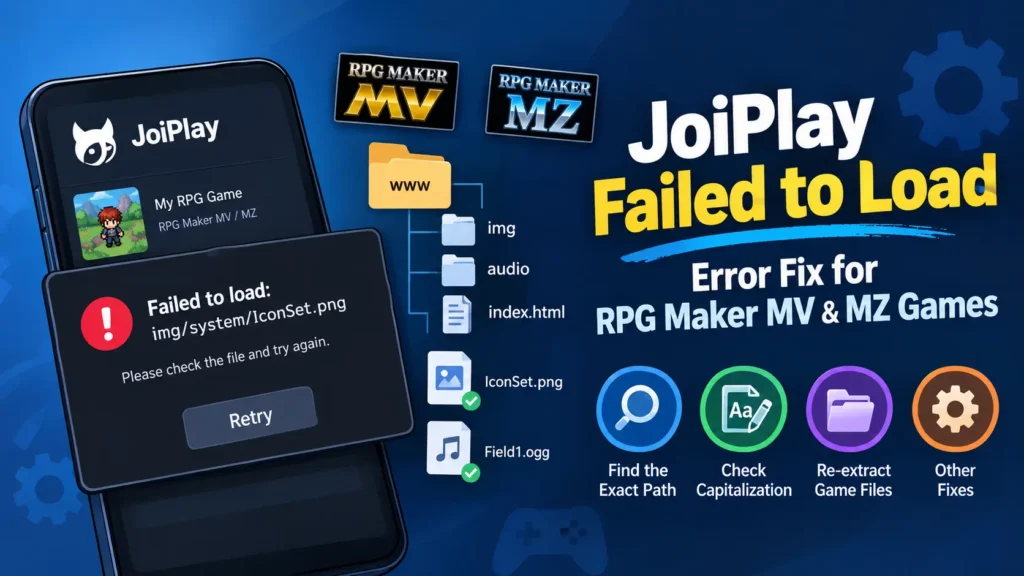
Encountering the JoiPlay Failed to Load error when launching RPG Maker MV or MZ games on Android can be frustrating, especially when a game refuses to start or gets stuck on a loading screen. This error may occur due to missing or outdated plugins, incompatible game files, incorrect settings, or compatibility issues with your JoiPlay version. In this guide, we’ll explain the common causes of the JoiPlay failed to load error and walk you through practical solutions to help you run your favorite RPG Maker MV and MZ games smoothly.
What Does Failed to Load: img/… Mean in RPG Maker MV and MZ Games?
When you see the JoiPlay Failed to Load error while playing an RPG Maker MV or MZ game on Android, the message usually identifies a file that the game could not load. This might be an image, character sprite, tileset, background music file, or another asset required to run the game.
RPG Maker MV and MZ games commonly use web-based project files. In a typical unpacked game, you add the game to JoiPlay by selecting index.html inside the www folder. The game then loads its images, audio, and other resources from their expected locations.
For example, img/system/IconSet.png tells you that the game is looking for IconSet.png inside the img/system folder. Similarly, a path containing audio/bgm usually points to background music.
The important detail is the complete path, including the filename and extension. If the same error appears every time you press Retry, the problem may involve a missing file, incorrect capitalization, an incomplete extraction, or an unsupported game build.
If JoiPlay is failing in other ways, such as refusing to launch games or closing unexpectedly, our guide to common JoiPlay problems and their solutions can help you identify a different cause.
Why Does This Error Occur More Often on Android Than on PC?
One possible reason is the way Android handles filenames. Android commonly uses case-sensitive file systems, meaning uppercase and lowercase letters can represent different filenames. Windows often handles filename capitalization differently.
For instance, a game might request IconSet.png, while the actual file is named iconset.png. The file may appear to be present, but the game can still fail to locate it on Android.
Other causes of the JoiPlay Failed to Load error include:
- Incomplete extraction: Some files inside the
imgoraudiofolder were not extracted or copied. - Incorrect filenames: A file or folder has different capitalization or spelling from the path requested by the game.
- Damaged assets: A downloaded or transferred file is corrupted or incomplete.
- Insufficient storage: Very limited free space can interfere with extraction and file operations.
- Unsupported game format: The game uses encrypted assets or a packaged Windows release that JoiPlay cannot load in its current form.
If you are new to the emulator, read our guide explaining what JoiPlay is and how it runs RPG Maker games on Android before troubleshooting more complex compatibility problems.
Fix 1: Check the Exact File Path in the Error Message
Before changing any files, identify the exact resource that failed to load. The error message provides a useful starting point and helps you avoid making unnecessary changes to the game folder.
Follow these steps:
- Leave the error message open and take a screenshot.
- Write down the complete path shown on the screen.
- Identify the folder, filename, and extension.
- Remember where the error appeared, such as the title screen, a new map, or a battle.
Use the following examples to locate the affected file.
| Error path | Folder to check | What to verify |
|---|---|---|
img/system/IconSet.png | www/img/system | Exact filename and capitalization |
img/characters/Actor1.png | www/img/characters | Filename and extension |
img/tilesets/Inside_A2.png | www/img/tilesets | Whether the file exists |
audio/bgm/Field1.ogg | www/audio/bgm | File presence and audio extension |
These locations assume a typical unpacked RPG Maker project. If the game does not have a www folder, check whether its img and audio folders are directly inside the main game directory.
Once you have identified the missing resource, move to the relevant fix below instead of repeatedly pressing Retry.
Fix 2: Compare the Filename and Capitalization
The next step is to compare the path in the error message with the actual filename on your phone. Even a small difference can prevent the game from locating the correct resource.
- Open your Android file manager or ZArchiver.
- Navigate to the folder containing your RPG Maker game.
- Open
www, followed by the folder named in the error message. - Find the file that most closely matches the requested filename.
- Compare the spelling, capitalization, extension, and folder location.
For example, if the error says IconSet.png, these filenames are not necessarily equivalent on Android:
IconSet.png— exact match.iconset.png— different capitalization.IconSet.PNG— different extension capitalization.IconSet.png.png— an additional extension may have been added accidentally.
Also check the folder names. A file stored directly in img will not necessarily be found when the game expects it inside img/system.
If you cannot find the requested file or any similar filename, continue to Fix 4. If the file exists and matches the path exactly, investigate possible file damage or compatibility issues instead.
Fix 3: Rename Only the File That Does Not Match
If you identify a clear filename mismatch, renaming that individual file may resolve the problem. The goal is to make the existing filename match the path requested by the game.
- Long-press the mismatched file in your file manager or ZArchiver.
- Select Rename.
- Enter the exact filename shown in the error message, including uppercase letters and the extension.
- Confirm that the file is still inside the correct folder.
- Fully close JoiPlay and reopen the game.
- Return to the point where the error occurred and check whether the resource loads.
For example, if the game requests IconSet.png but the file is named iconset.png, rename it to match the requested spelling.
Do not rename files that already match, and avoid changing entire folders without confirming the cause. If another error appears with a different path, repeat the process for that particular file.
If the requested filename already matches exactly, renaming it again is unlikely to help. Move on to checking the game files.
Fix 4: Re-Extract the Game’s Image and Audio Folders
An incomplete extraction can leave a game without important resources. This can happen when an archive is damaged, extraction is interrupted, or files are skipped during copying.
To check whether this is causing the JoiPlay Failed to Load error, extract a fresh copy of the game.
- Locate the original ZIP or other archive containing the game.
- Open it using ZArchiver or another compatible archive manager.
- Extract the contents into a new folder.
- Wait for the extraction process to finish and check for any warnings.
- Open the extracted game folder and inspect
www/imgandwww/audio, if present. - Compare the fresh folders with the folders in your existing game installation.
- Back up your save files before replacing or merging any game assets.
- Copy the fresh asset folders into the appropriate game directory, replacing damaged or incomplete files when necessary.
- Open JoiPlay and test the game again.
If the original archive reports extraction errors or the same resources are missing from the fresh copy, obtain another copy from the game’s official creator or a trusted source.
Our guide on downloading and preparing games for JoiPlay explains the basic process of getting game files ready for Android.
Important: Keep a backup of your saves and existing game folder before replacing files. Save locations vary between games, so do not assume that every save is stored separately from the game assets.
Fix 5: Free Up Storage Space on Your Android Phone
Limited storage is not the most common explanation for a consistently missing filename, but it is worth checking if the error occurs randomly or after a large game download or extraction.
Try the following:
- Open your phone’s Settings and check the available storage.
- Remove or move unnecessary files if storage is nearly full.
- Make sure the game archive has enough room to extract completely.
- Close other resource-intensive apps.
- Fully close and reopen JoiPlay.
- Launch the game and check whether the error appears again.
For a large game, keeping a few gigabytes of free space can provide useful room for extraction and other file operations. The amount required depends on the game’s size.
If the same resource fails every time and its filename has incorrect capitalization, freeing storage alone will not fix the underlying problem. Return to Fix 2 or Fix 3 and check the exact path.
Fix 6: Check Whether the Game Uses Encrypted or Unsupported Files
Sometimes the issue is not a missing file but the format in which the game was released. Some RPG Maker MV and MZ games contain encrypted assets, while others are distributed as Windows installers or packaged builds rather than an unpacked project.
Look for these signs:
- The download contains only a Windows
.exeinstaller and no accessible game project files. - Image files use extensions such as
.rpgmvprather than ordinary.pngfiles. - Audio files use extensions such as
.rpgmvorather than ordinary.oggfiles. - The release does not contain an accessible
index.htmlor the expected game directory structure. - The game creator provides only a packaged Windows version.
These signs do not automatically prove that a game is incompatible, but they indicate that its file format needs further investigation.
To troubleshoot safely:
- Check the game’s official download page for installation instructions or supported platforms.
- Look for an unpacked release or an Android-compatible version provided by the creator.
- Confirm that the downloaded files contain the expected project structure.
- Add the game to JoiPlay using the appropriate entry file for that release.
- If the game requires a format or feature that JoiPlay does not support, use a compatible platform instead.
Do not assume that renaming encrypted files to .png or .ogg will make them readable. Changing an extension does not decrypt a file or convert its contents into another format.
If the game uses a supported format but still fails, check the requirements for its RPG Maker version and any necessary plugins.
Is a Black Screen Different From a Failed-to-Load Error?
Yes. A black screen, a missing-resource message, and an unexpected crash can have different causes. Identifying the symptoms first can save time and help you choose the right troubleshooting steps.
- Failed-to-load message: The game displays a file path and usually offers a Retry button. Follow the steps in this guide.
- Black screen: The game displays a blank or black screen without identifying a missing file. Follow our JoiPlay black screen troubleshooting guide.
- Unexpected crash: JoiPlay closes or returns to the home screen without displaying a missing-resource path. Check general compatibility, game requirements, and solutions for JoiPlay not working.
These symptoms can sometimes overlap, but the exact message is a useful clue. Start with the troubleshooting method that matches what you actually see on your phone.
Quick Checklist Before Launching the Game Again
Before reopening your save, review these points:
- The requested file exists in the correct folder.
- The filename, capitalization, and extension match the error path.
- The
imgandaudiofolders have been extracted completely. - The game archive contains no unresolved extraction errors.
- Your phone has enough free storage to handle the game files.
- The release uses a format and project structure compatible with JoiPlay.
- Your save files are backed up before you replace or modify game assets.
If the same error persists after these checks, note the complete file path and the name of the game. That information can help narrow down whether the issue is caused by a missing asset, an incorrect filename, damaged files, or a compatibility limitation.
Conclusion
The JoiPlay Failed to Load error can often be resolved by checking your game files, updating JoiPlay and the required plugins, verifying compatibility, and correcting any incorrect settings. Since RPG Maker MV and MZ games may have different requirements, the right solution depends on the specific error message and game you’re trying to launch. Try the fixes in this guide one by one, and if the problem persists, check the game’s compatibility or share the exact error message to help identify the cause.