
How to Play Pokémon Games on JoiPlay: 5 Easy Steps to the Ultimate Guide
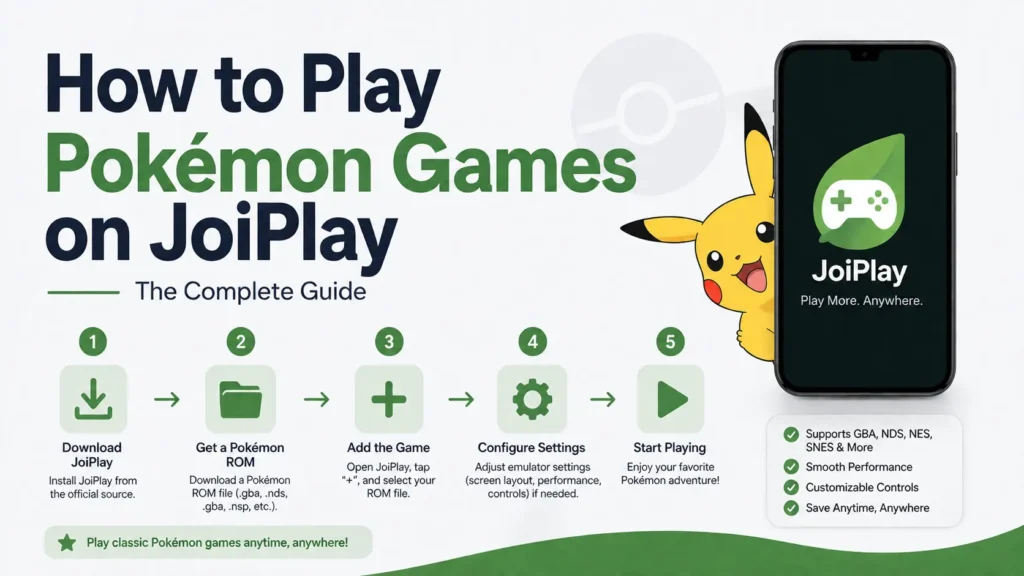
Pokémon games have been re-imagined, remade, and re-released dozens of times, but for a lot of fans, nothing beats going back to the originals: Red, Blue, Yellow, Gold, Silver, Crystal, Ruby, Sapphire, Emerald, Fire Red, and Leaf Green. If you’ve got an Android phone or tablet and want to relive these games (or try ROM hacks and fan-made versions) without carrying around old hardware, JoiPlay is one of the most flexible tools available for the job.
JoiPlay wasn’t originally built as a Pokémon emulator. It started as a lightweight player for RPG Maker games and visual novels, designed to run engines like RPG Maker XP, VX, VX Ace, and Ren’Py directly on Android. Over time, its developers opened it up to a plugin architecture, and the community built plugins that let JoiPlay function as a front-end for actual console emulator cores, including one based on mGBA, a well-regarded Game Boy Advance emulator. That plugin is what turns JoiPlay from an RPG Maker player into a genuine handheld Pokémon machine.
This guide covers everything from the ground up: installing the app, adding the right plugin, loading ROMs correctly, configuring your controls and performance settings, and fixing the most common problems people run into.
Why Use JoiPlay for Pokémon Instead of a Dedicated GBA Emulator?
Before jumping into the setup, it’s worth understanding why someone would choose JoiPlay over a purpose-built Game Boy Advance emulator like My Boy! or a standalone mGBA app. A few reasons come up often:
- Convenience of a single hub. If you’re already using JoiPlay for RPG Maker games, visual novels, or other retro titles, adding Pokémon to the same library means you don’t need to jump between multiple apps.
- Consistent interface. JoiPlay’s game library, control customization, and save-state system stay the same across every plugin, so once you’ve learned the app, adding a new console’s plugin doesn’t require relearning a new interface.
- Actively maintained plugin ecosystem. Because JoiPlay’s plugins are modular, updates to the GBA plugin (bug fixes, performance improvements, better compatibility) roll out independently of the main app.
- Lightweight footprint. JoiPlay itself is a small app, and you only install the plugins for the systems you actually want to emulate, rather than a bulkier all-in-one emulator suite.
That said, dedicated GBA emulators can sometimes offer deeper, system-specific settings. JoiPlay is best thought of as a “good enough and very convenient” option rather than the most feature-dense GBA emulator on Android.
What You’ll Need Before Starting
- An Android device. JoiPlay is Android-exclusive, there’s no official iOS, Windows, or Mac version, though some people run it on PC through Android emulator software like BlueStacks (with mixed results).
- The JoiPlay app, downloaded either from the Google Play Store or the official JoiPlay website/GitHub page.
- A GBA plugin, since JoiPlay doesn’t include native Game Boy Advance emulation out of the box. This plugin is typically built on the mGBA core and is distributed separately from the main app.
- A Game Boy/Game Boy Color plugin, if you want to play the older generation titles (Red, Blue, Yellow, Gold, Silver, Crystal). Depending on the version of JoiPlay you’re using, this may be bundled with the GBA plugin or offered as its own download.
- ROM files for the Pokémon games you want to play, in the correct format:
.gbor.gbcfor Game Boy and Game Boy Color games.gbafor Game Boy Advance games
- A BIOS file (optional). Most GBA games, including the Pokémon titles, will run fine without a BIOS file using mGBA’s high-level emulation, but adding a legitimate BIOS dump can slightly improve accuracy for certain graphical effects and startup sequences.
- Enough free storage. ROMs themselves are usually small (a few megabytes to tens of megabytes), but save states and cheat files can add up over time.
Step 1: Download and Install JoiPlay
- On your Android device, open the Google Play Store and search “JoiPlay.” Alternatively, visit JoiPlay’s official website or GitHub releases page if you prefer to sideload the APK or if the Play Store version isn’t available in your country.
- Tap Install and allow the download to finish.
- If you downloaded the APK manually instead of using the Play Store, you’ll need to enable “Install unknown apps” for whichever app you used to download it (usually your browser or file manager). This setting lives under Android Settings > Apps > Special app access > Install unknown apps.
- Open JoiPlay for the first time. You’ll land on an empty library screen with icons for adding games and accessing settings, this is expected, since no games or plugins have been added yet.
Step 2: Download and Install the GBA Plugin
This is the step that actually gives JoiPlay the ability to run Pokémon games, so it’s worth doing carefully.
- Navigate to the JoiPlay Plugins page. This is typically linked directly from the JoiPlay app (often through a “Get Plugins” or “Plugins” button in the settings menu) or from the official JoiPlay website.
- Find the plugin associated with Game Boy Advance emulation, it’s usually labeled clearly, such as “GBA Plugin” or named after the mGBA core it’s built on.
- Download the plugin’s APK file.
- Install the APK the same way you would any Android app. Again, you may be prompted to allow installation from unknown sources if you haven’t already.
- Repeat the process for the Game Boy/Game Boy Color plugin if you plan on playing the original Red/Blue/Yellow or Gold/Silver/Crystal games and it isn’t already covered by the GBA plugin.
- Open JoiPlay and check Settings > Plugins (the exact wording may vary slightly by version) to confirm that the plugin(s) show up as installed and active.
If a plugin doesn’t appear in JoiPlay after installation, try force-closing and reopening JoiPlay, or restarting your device, Android sometimes needs a refresh to register a newly installed companion app.
Step 3: Prepare and Add Your ROM Files
- Move your ROM files onto your device. You can do this by:
- Connecting your phone to a computer via USB and dragging the files over.
- Uploading them to a cloud storage service (Google Drive, Dropbox) and downloading them directly to your device.
- Downloading them straight to your device’s browser, if that’s where you sourced them from.
- Organize them into a dedicated folder, something like
Internal Storage/JoiPlay/roms, so they’re easy to find and manage later. - Open JoiPlay and tap the + icon or Add Game button, usually found in the bottom corner or top bar of the main library screen.
- Use the file browser that pops up to locate your ROM file and select it.
- JoiPlay should automatically recognize the file extension (
.gba,.gb,.gbc) and link it to the appropriate plugin you installed earlier. If you’re prompted to manually choose an engine, select the GBA (or GB/GBC) plugin. - Once added, the game will appear as a tappable icon in your JoiPlay library, often with generic placeholder artwork unless you add custom box art yourself.
Adding Custom Box Art (Optional)
JoiPlay allows you to personalize your library by assigning custom cover images to each game:
- Long-press or tap the three-dot menu on a game’s icon.
- Look for an option like Edit or Change Image.
- Select an image from your device’s gallery or a downloaded box art file.
- This step is purely cosmetic but makes a multi-game library much easier to navigate visually.
Step 4: Set Up Your Controls
Getting your controls comfortable is one of the most important parts of the setup, since you’ll likely be playing with touchscreen buttons unless you connect an external controller.
- Launch the game once, then open the in-game overlay menu (usually a small floating icon on the screen, sometimes in a corner).
- Navigate to Controller Settings.
- From here, you can:
- Drag and resize the D-pad, A/B buttons, and Start/Select buttons to fit comfortably under your thumbs.
- Adjust transparency so the buttons are visible but don’t block the screen.
- Toggle individual buttons on or off, which is useful if you want a cleaner layout for a game that doesn’t use certain inputs often.
- Save your layout as a profile, so you don’t have to redo it for every game.
- If you’d rather use a physical controller, pair a Bluetooth or USB gamepad through your device’s normal Bluetooth settings. JoiPlay generally auto-detects standard controller input, but you can manually remap buttons under the same Controller Settings menu if the defaults don’t match your preferences.
Step 5: Fine-Tune Emulation and Performance Settings
Once your controls are set, it’s worth spending a few minutes in the plugin’s settings menu to optimize your experience:
- Frame skip: increases performance on older or lower-end devices by skipping rendered frames; useful if the game stutters.
- Fast-forward speed: lets you speed through repetitive tasks like walking, grinding for experience, or breeding, and is often bound to a toggle button on-screen.
- Save states: JoiPlay supports save states independent of each game’s built-in save system, letting you freeze and restore your exact progress at any moment. This is especially useful right before a tough Gym battle or a rare Pokémon encounter, since you can reload instantly if things go wrong.
- Screen scaling and filters: choose between sharp pixel scaling (nearest-neighbor, which keeps that retro blocky look) or smoothing filters that soften the image on larger screens.
- Cheat code support: some versions of the GBA plugin support classic cheat formats (like Action Replay or Game Shark codes), which can be entered manually if you want things like guaranteed shiny encounters or unlimited Rare Candies.
- Audio settings: adjust sample rate or disable sound entirely if you’re experiencing audio stutter alongside visual lag.
Step 6: Start Playing
With everything configured, tap your Pokémon game’s icon in the JoiPlay library to launch it. From this point, it behaves just like it would on original hardware:
- Navigate the title screen, start a new game or continue a save file, and play through the story as normal.
- Save periodically through the in-game save menu (usually accessed via the Start button and a “Save” option), and back this up with JoiPlay’s save-state feature for extra security.
- Use the floating in-game menu at any time to fast-forward, adjust volume, take a screenshot, or return to your JoiPlay library without closing the app entirely.
Troubleshooting Common Problems
| Problem | Likely Cause | Fix |
|---|---|---|
| Game won’t open or crashes on launch | Plugin not installed correctly, or ROM file is corrupted | Reinstall the GBA plugin, redownload the ROM, and re-add it to your library |
| Choppy, slow, or laggy gameplay | Device is underpowered for full-speed emulation | Turn on frame skip, lower any visual filters, close background apps |
| No sound during gameplay | Audio settings muted or misconfigured in the plugin | Check the plugin’s audio settings and your device’s media volume |
| Touch controls unresponsive or misaligned | Layout wasn’t calibrated properly | Reopen Controller Settings and manually reposition/resize buttons |
| ROM doesn’t appear when browsing files | Wrong file extension or file stored in a restricted folder | Confirm the file ends in .gba, .gb, or .gbc, and move it to an accessible storage folder |
| Black or white screen after the intro logo | Missing or incompatible BIOS file | Add a legitimate BIOS file in plugin settings, or try without one if you already have one loaded |
| Save file lost after an update | App data was cleared or overwritten during an update | Always back up save files and save states externally before updating JoiPlay or its plugins |
Tips for the Best Experience
- Back up everything regularly. Copy your save files and save states to cloud storage, a computer, or an external drive. Emulator apps can occasionally lose data during updates or device changes, so redundancy is your friend.
- Update JoiPlay and its plugins periodically. The plugin ecosystem is actively maintained, and newer versions often fix ROM compatibility issues or improve performance.
- Use a physical controller for long play sessions. Touchscreen buttons work fine for short bursts, but a Bluetooth controller is much more comfortable if you’re planning a serious playthrough.
- Experiment with scaling filters. The “best” visual setting is subjective, try a few options to see what looks best on your specific screen size and resolution.
- Keep your ROM library organized. As you add more games, a clear folder structure and custom box art will save you time navigating your JoiPlay library.
- Check plugin-specific documentation. Because JoiPlay’s plugins are community-maintained, checking their release notes or support pages can help you catch known issues before they trip you up.
If you want to know what are the new game released in 2026, check out here and find your best interest game.
Final Thoughts
JoiPlay turns your Android phone into a surprisingly capable retro Pokémon machine once you’ve got the GBA (and GB/GBC) plugin installed and your ROMs loaded correctly. The setup process is straightforward, install the app, add the plugin, load your files and most of your remaining time will go toward tuning controls and performance to your personal taste rather than wrestling with complicated configuration. Whether you’re revisiting Kanto for the tenth time, exploring Hoenn on Emerald, or trying out a Pokémon ROM hack, JoiPlay offers a convenient, unified way to do it without needing a separate emulator app for every console generation.